

Steward Inbox
how-to Steps to accomplish one task
On this page
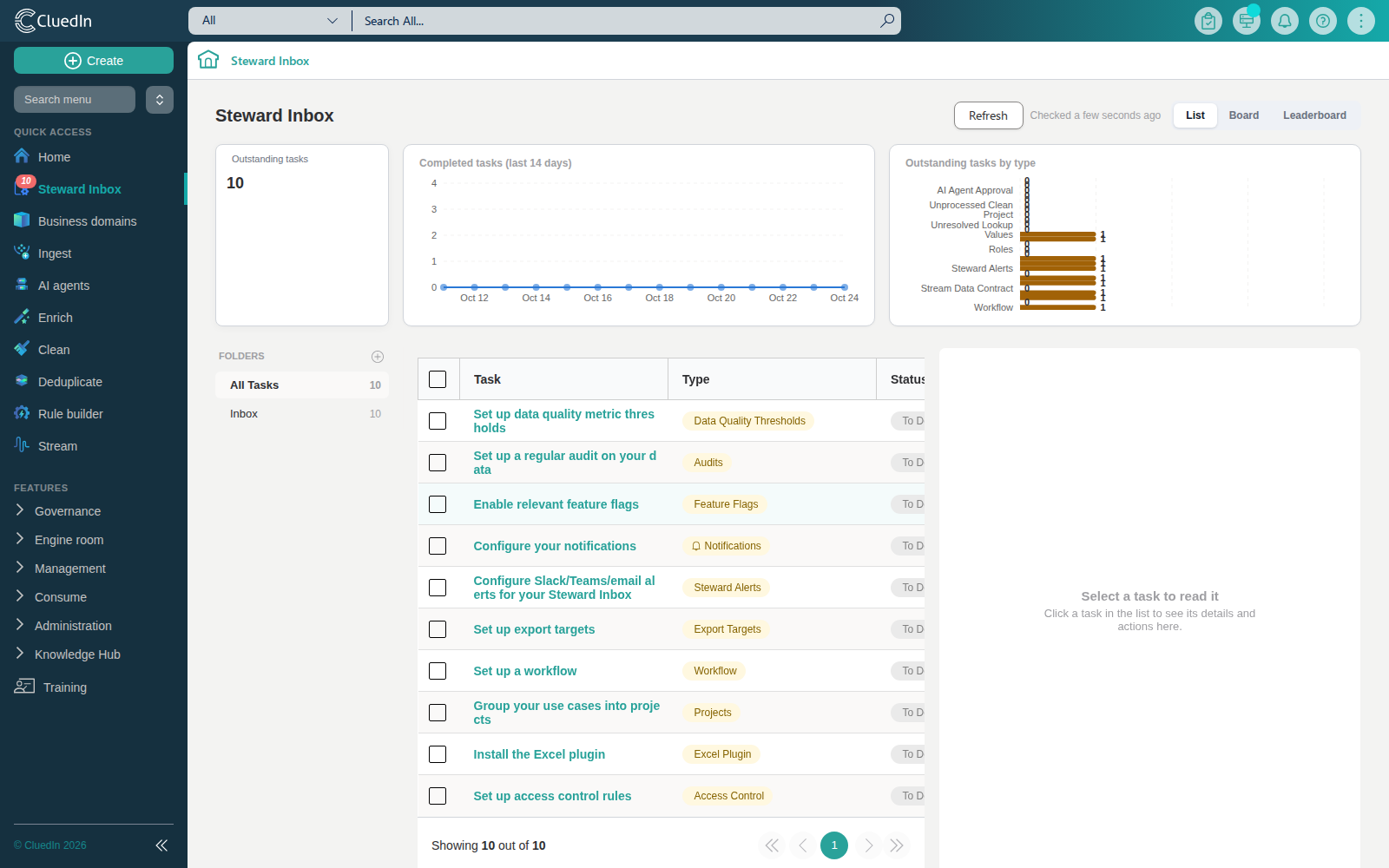
The Steward Inbox is a single, prioritized worklist for everything a data steward needs to review or act on: pending match approvals, unhealthy rules and streams, quarantined records, AI agent results waiting for review, and a setup checklist of important configuration an organization should complete but hasn’t. Open it from Steward Inbox in the navigation pane.
The setup checklist
Alongside the data-quality and approval items, the Inbox surfaces a configuration item whenever one of the following is missing or incomplete for your organization. Each one disappears on its own once the gap is closed — either by completing it manually through its Open link, or by accepting an AI-proposed fix (see Assign a task to AI below).
| Setup item | What it checks | Where to configure it manually |
|---|---|---|
| Data quality metric thresholds | Whether any of the nine data quality metrics has no minimum acceptable score configured | Set a threshold on a metric |
| Audits | Whether any audit is configured to recur on a schedule | Audits |
| Training | Whether you have any training certification still outstanding | Training |
| Roles | Whether your organization has created any custom role beyond the built-in ones | Users and roles |
| Connector icons | Whether any configured connector has no icon set | Export targets |
| Feature flags | Whether any available feature flag is still disabled | Feature flags |
| Notifications | Whether notifications for important items are turned on | Organization settings |
| Steward Inbox alerts | Whether a Slack or Microsoft Teams webhook is configured for steward task notifications | Organization settings |
| AI spend limits | Whether a daily or monthly AI spend limit is configured | AI usage |
| Excel plugin | Whether the Excel plugin has been installed/connected | Excel Add-in |
| Export targets | Whether any export target is configured | Export targets |
| Stream Data Contracts | Whether a stream you own has no Data Contract configured | Streams |
| Projects | Whether your organization has grouped any use cases into a project | Projects |
| Access control rules | Whether any access control policy is configured | Access control |
| AI agents | Whether your organization has configured any AI agent | AI agents |
| Workflow | Whether any workflow is configured for alerting, notifications, or human sign-off | Workflows |
The setup checklist is visible to organization admins only (Training is the one exception — it reflects your own outstanding certifications, so every user sees it).
Assign a task to AI
Nine of the setup checklist items — Data quality metric thresholds, Audits, Roles, Feature flags, Notifications, AI spend limits, Stream Data Contracts, Access control rules, and Workflow — also offer an Assign to AI action, so you can have an AI agent propose the fix instead of configuring it yourself.
Prerequisites
- You must be an organization admin to assign a setup checklist item to AI.
Propose a fix
- Open the item from the Inbox list.
- Select Assign to AI.
The first time you do this, CluedIn creates a dedicated Steward Setup Assistant AI agent for your organization (visible, like any other agent, on the AI agents page) and asks it to propose a fix for the item. A notification confirms the assignment, and the item’s AI assignment panel updates to show the result — typically within a few seconds.
Selecting Assign to AI again on an item that already has a pending assignment just shows you that same pending proposal, rather than asking again. You can request a fresh proposal after rejecting one (see below).
Review the proposed change set
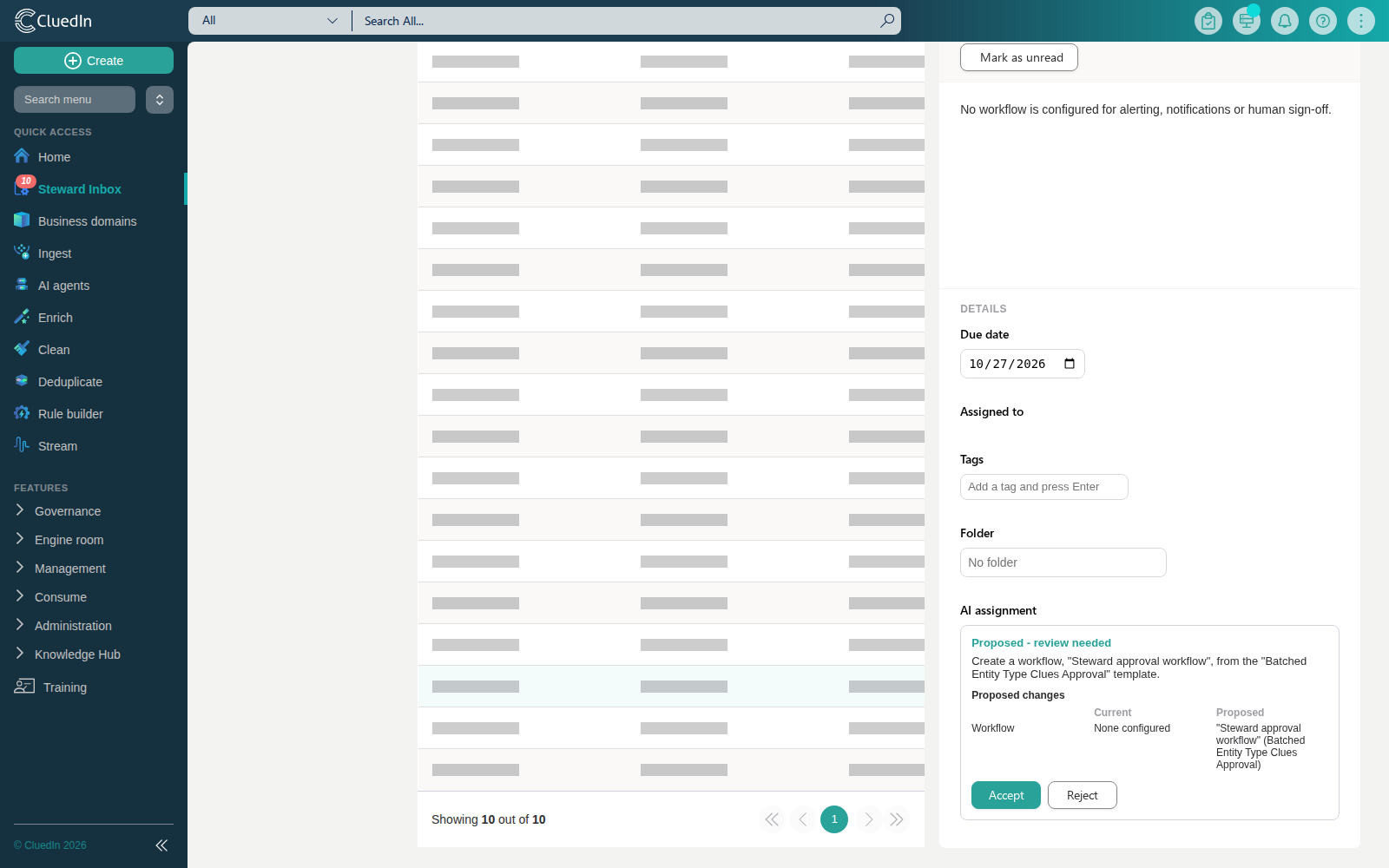
The AI assignment panel on the item shows:
- The assignment’s status: Proposed - review needed, Approved and applied, or Rejected.
- A short summary of what’s being proposed.
- A table of the specific changes: each field’s current value and the value the AI agent proposes.
Accept or reject the proposal
While an assignment is Proposed - review needed, two actions are available:
- Accept applies the proposed change immediately — the same real configuration change you’d have made by hand. The Inbox item disappears once the underlying gap is closed.
- Reject discards the proposal. Nothing is changed, and the item stays in the Inbox as incomplete. You can select Assign to AI again afterwards to get a fresh proposal.
Verify the result
- After accepting, open the configuration area the item deep-links to (see the table above) to confirm the change — for example, the new threshold on the Data Quality Dashboard, or the new agent on AI agents.
- After rejecting, the item’s AI assignment panel shows status Rejected, and the item remains visible in the Inbox with its original status.
What this changes
- Accepting a proposal makes the same real configuration change as doing it manually through the item’s Open link — for example, it writes an organization setting, creates a role, or creates an access control policy. A proposed access control policy is created inactive, so review and activate it from Access control before it takes effect.
- Rejecting a proposal only changes the assignment’s own status. It never applies any configuration change.
- Every AI-proposed fix is recorded the same way an AI agent’s other results are, so it’s also visible — and can be approved or rejected from there too — on the Steward Setup Assistant agent’s own page under AI agents.